Category: Blog

Your blog category

  • Tally Prime – Step by Step to Create Ledgers – Example 2

    This example covers how to create ledgers and how they affect the profit and loss statement and balance sheet.

    Please follow the steps and share your feedback in the comments section once completed

    Ledger NameGroupDebit (₹)Credit (₹)
    Rama Capital AccountCapital Account5,00,000
    Cash in HandCash-in-Hand1,00,000
    SBI A/cBank Accounts2,00,000
    Sales Sales Account3,00,000
    PurchasePurchase Account1,50,000
    Sundry Debtor – ASundry Debtors50,000
    Sundry Creditor – BSundry Creditors75,000
    Office EquipmentFixed Assets2,20,000
    Salary ExpensesIndirect Expenses1,70,000
    Rent ExpensesIndirect Expenses40,000
    Outstanding ExpensesCurrent Liabilities30,000
    Commission ReceivedIndirect Incomes25,000

    Step 1:

    Create a Company:

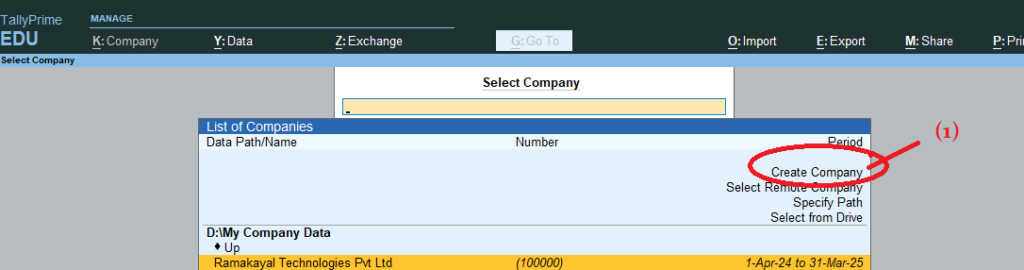
    1. Open Tally Prime & Click Create Company
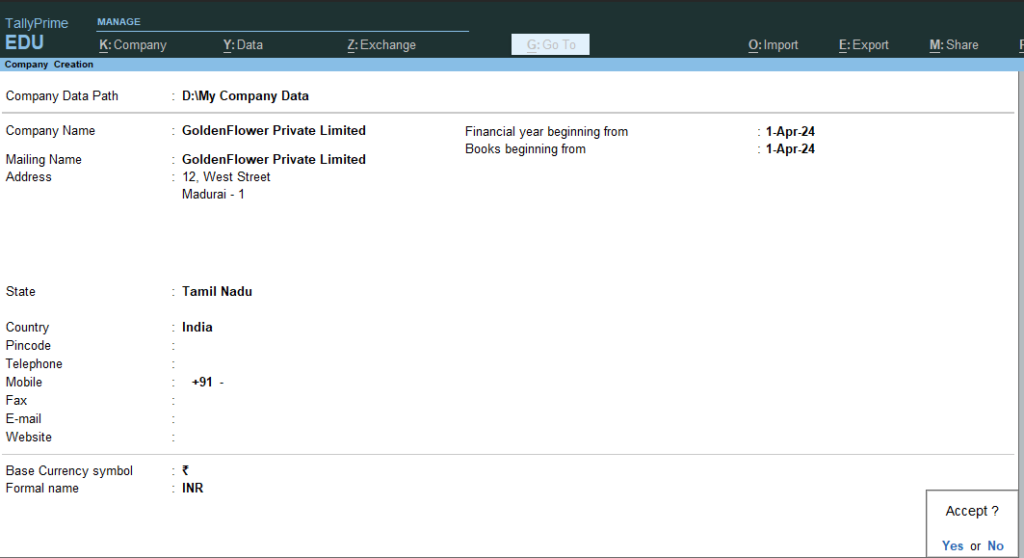
    2. Fill in the necessary details like company name, address, etc.,
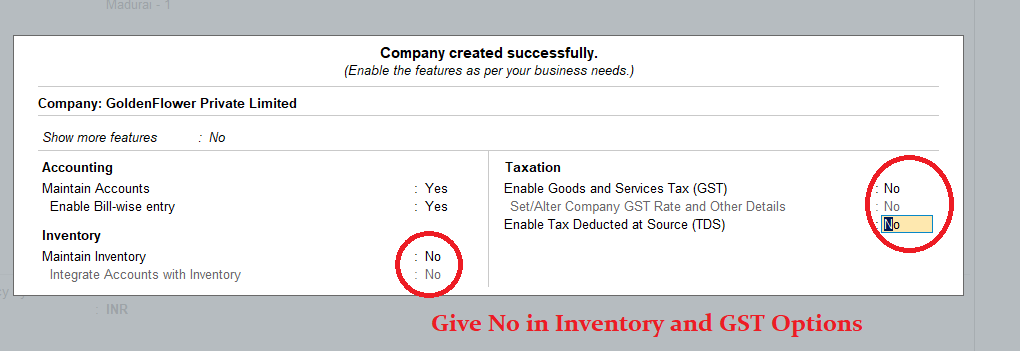
    3) After accepting the company creation screen, you will see the Company Features window. Set the ‘Maintain Inventory’ option to ‘No’ and the ‘Enable Goods and Services Tax (GST)‘ option to ‘No.’ Ensure that these settings match the screen below
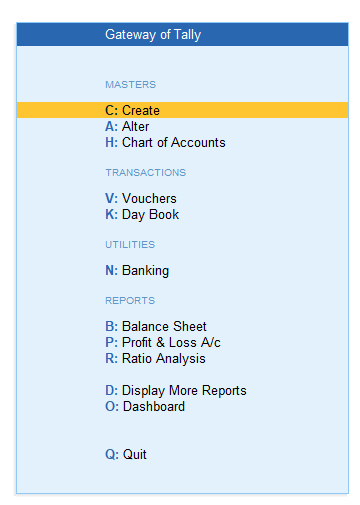
    4) After accepting the company features screen (Note: To accept any screen, press CTRL + A), you will see the Gateway of Tally.
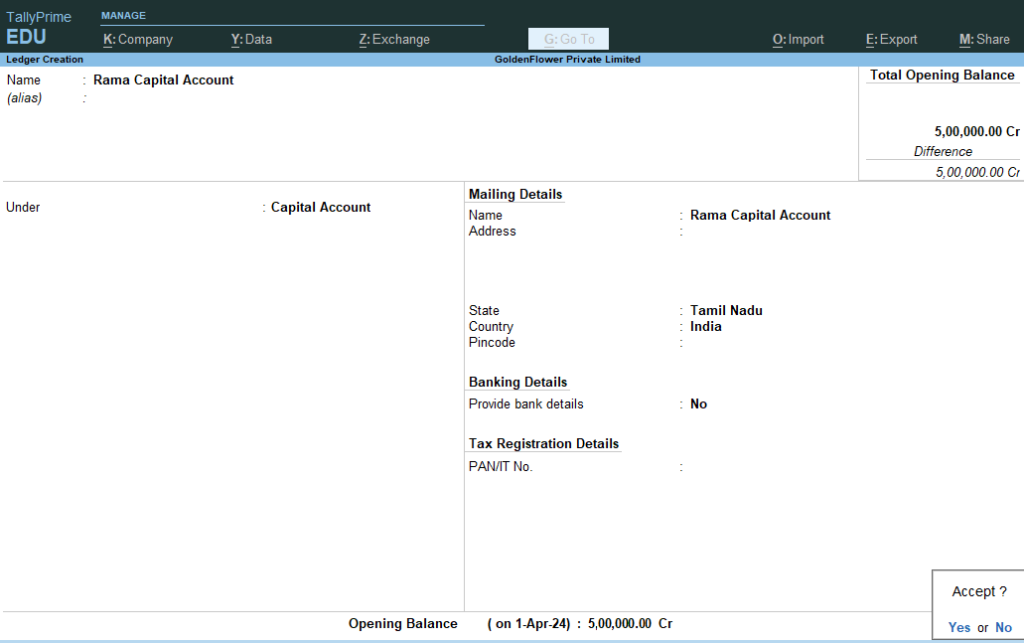
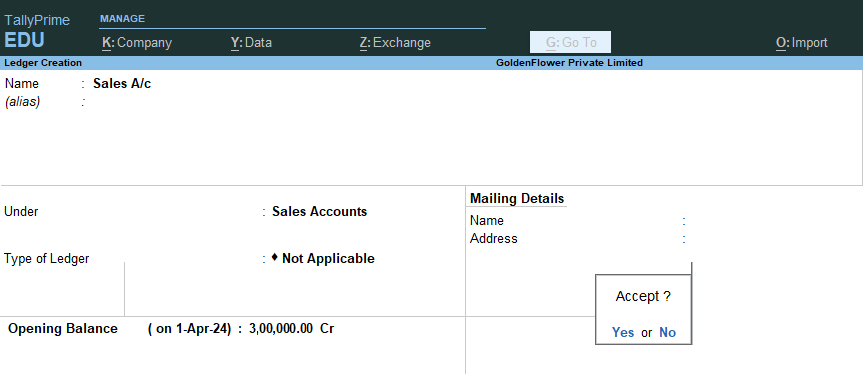
    5) Now create a ledger name called Rama Capital account with opening balance : Rs. 5,00,000

    Ledger NameGroupDebit (₹)Credit (₹)
    Rama Capital AccountCapital Account5,00,000

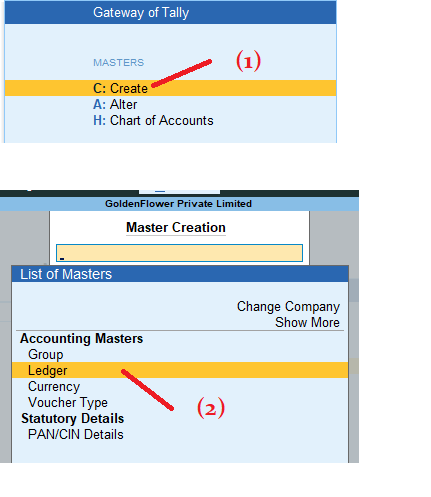
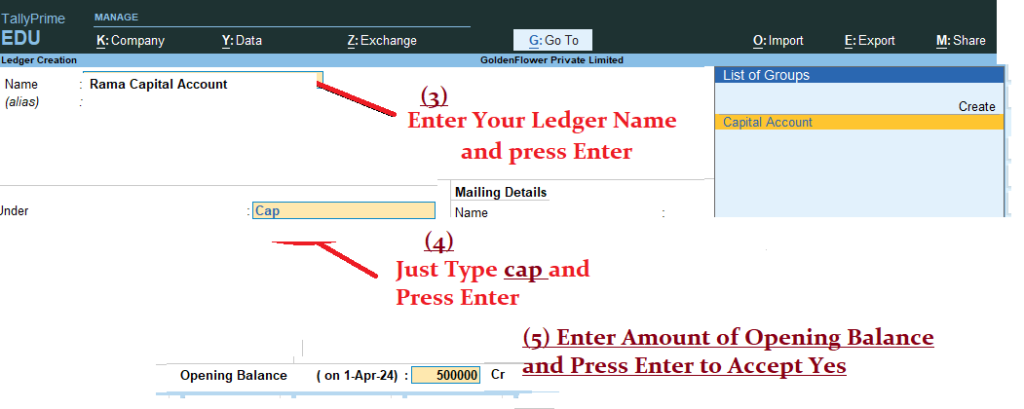
    Gateway of Tally > Masters > Create > Ledger > Name : Rama Capital Account Under : Capital Account and Opening Balance 5,00,000 Cr> Accept Yes ( Now Press Escape key Twice to see Gateway of Tally)

    6) Next

    Ledger NameGroupDebit (₹)Credit (₹)
    Cash in HandCash-in-Hand1,00,000

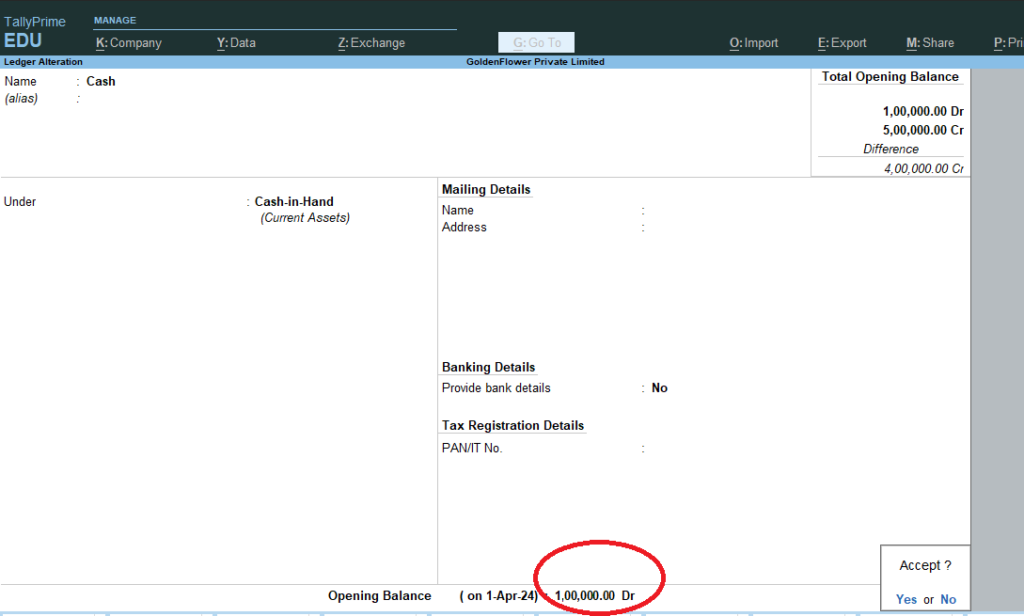
    Go Gateway of Tally > Masters > Alter > Ledgers > Select : Cash > Press Enter to see the below screen > Now Go to the Opening Balance Field using Enter Key > Give Opening Balance : 1,00,000 Dr > Accept : Yes
    7) Now Press Escape again and again to see the Gateway of tally

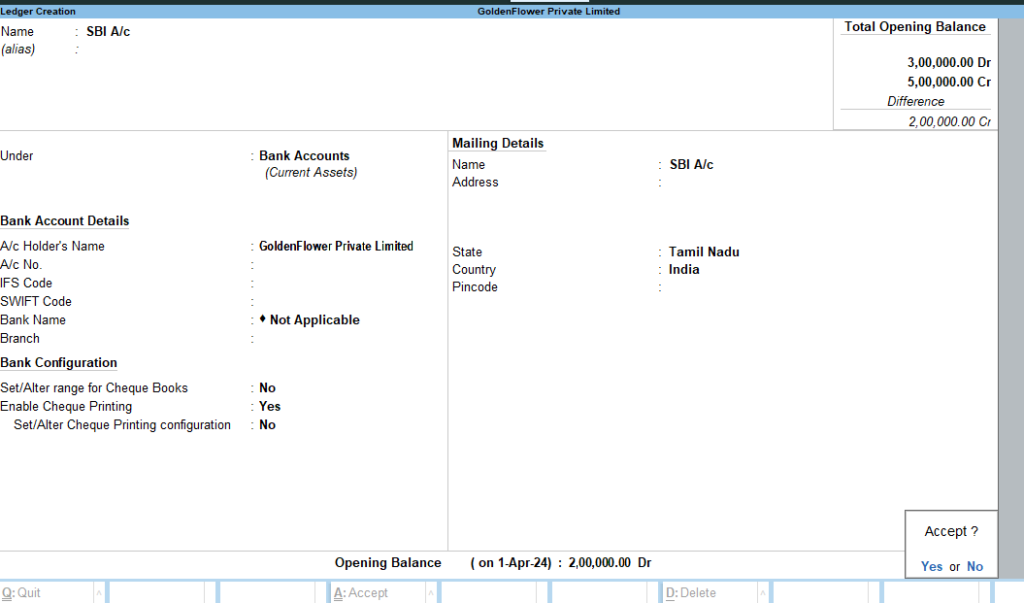
    Create the below ledgers using above steps >

    Ledger NameGroupDebit (₹)Credit (₹)
    SBI A/cBank Accounts2,00,000
    SalesSales Account3,00,000
    PurchasePurchase Account1,50,000
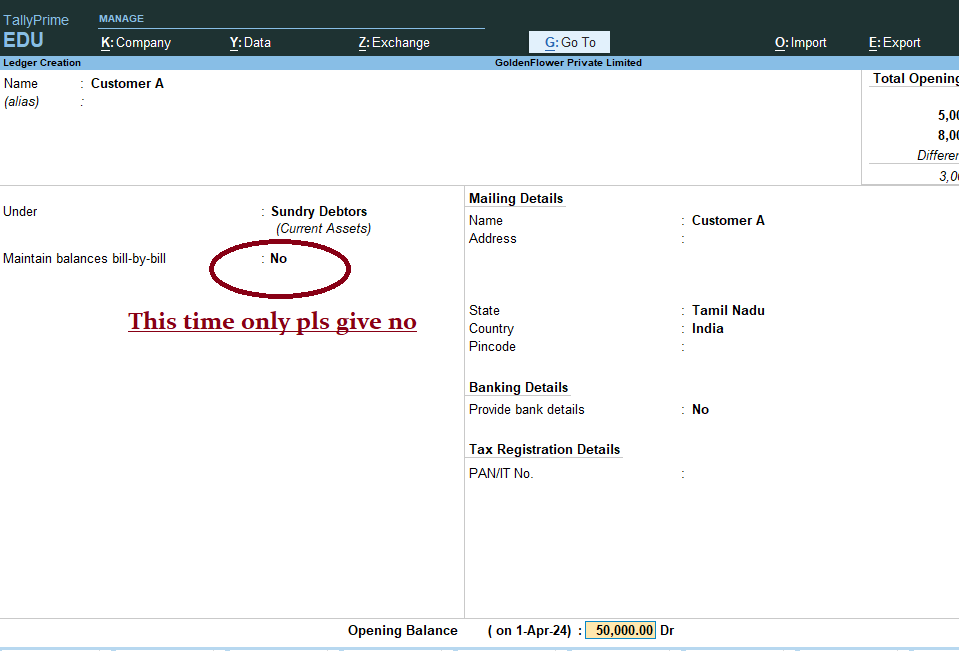
    Customer ASundry Debtors50,000
    Supplier ASundry Creditors75,000
    Office EquipmentFixed Assets70,000
    Salary ExpensesIndirect Expenses1,70,000
    Rent ExpensesIndirect Expenses40,000
    Outstanding ExpensesCurrent Liabilities20,000
    Commission ReceivedIndirect Incomes25,000

    8) After Created the above all ledgers with Opening Balance as per trail balance

    go Gateway of Tally > D: Display More Reports > T: Trail Balance >
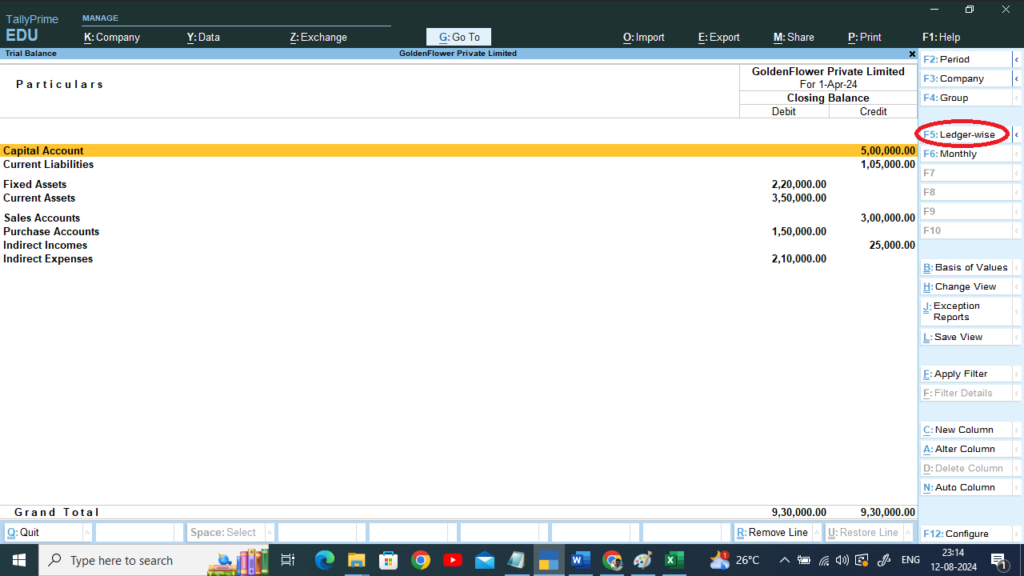
    Press F5 > To See Ledger Wise >
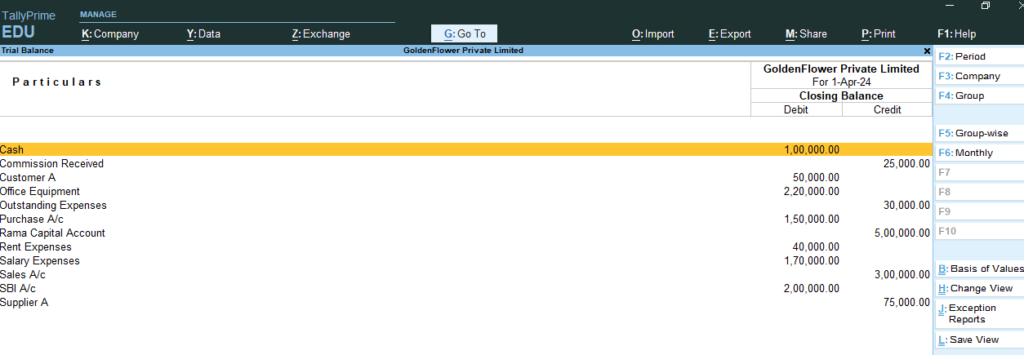
    9) Now Goto Gateway of Tally > Masters : Alter > Ledgers > Commission Received > Change the Opening Balance Amount : 80000 Accept > Yes

    10) Now Goto Gateway of Tally > Masters : Alter > Ledgers > Cash > Change the Opening Balance Amount : 155000– Accept > Yes

    11) go Gateway of Tally > D: Display More Reports > T: Trail Balance >
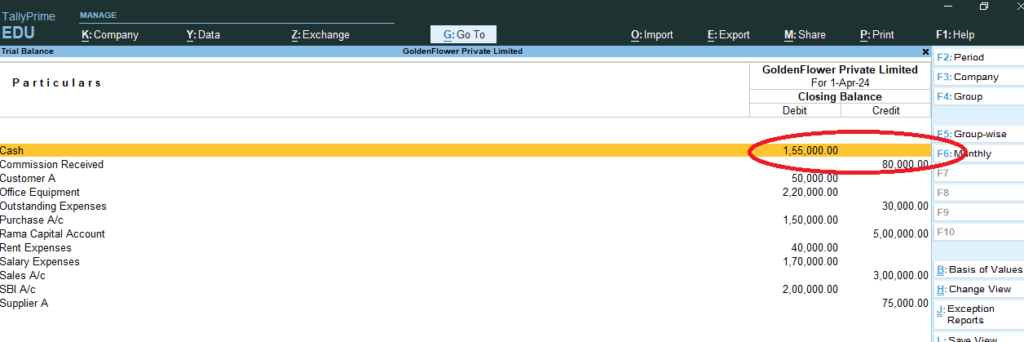
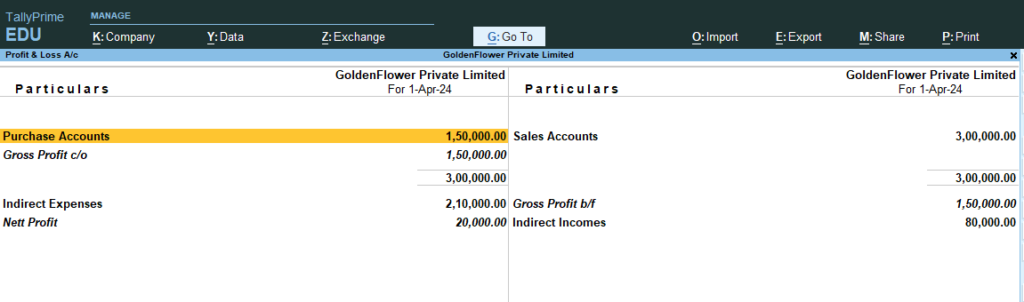
    12) Gateway of Tally > Profit and Loss A/c
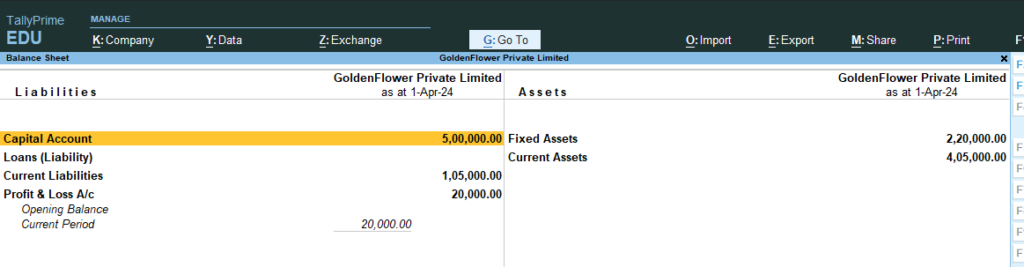
    13) Gateway of Tally > Balance Sheet
  • Fake News Alerts – Aug 2024

    Fake News Alerts – Aug 2024

    தற்போது Social Mediaவின் பயன்பாடு அதிகரித்து வரும் நிலையில் பல்வேறு போலியான செய்திகள் , மின்னஞ்சல்கள், Whatsapp Messages பரவி வருகிறது. இதனால் பல நபர்கள் தங்கள் தகவல்களை இணையதளத்தில் அல்லது பதிவிறக்கம் செய்யப்படும் செயலிகள் (Fake Android Applications) மூலம் பதிவு செய்வதால் பல்வேறு தகவல்கள் திருடப்படுகின்றன.

    இதனை தடுக்கும் வகையில் தற்போது பரவி வரும் போலியான தகவல்கள் என்ன என்பதை கண்டறியும் வகையில் உருவாக்கப்பட்ட Twitter பக்கங்களின் விவரங்கள் கீழே கொடுக்கப்பட்டுள்ளது.

    1. Cyber Crime Wing – Tamil Nadu – https://x.com/tncybercrimeoff
    2. PIB Fact Check – https://x.com/PIBFactCheck
    3. Cyber-safety and Cybersecurity awareness handle maintained by Ministry of Home Affairs, Government of India – https://x.com/Cyberdost
    4. Tamilnadu Fact Check – https://x.com/tn_factcheck

    மேலும மேற்படி Twitter பக்கங்களில் பகிரப்பட்ட சில தகவல்களை இங்கே காணலாம்.

    1. ) Research the company before making any investment!! To Report Cyber Crimes-Dial 1930 or register at https://cybercrime.gov.in

    2) Beware of IRCTC ticket refund scam!! To Report Cyber Crimes-Dial 1930 or register at https://cybercrime.gov.in

    3) Beware of this New SCAM : This is the new way of bank fraud, don’t click on the link in the message.

    Source : https://x.com/tnpoliceoffl/status/1819231033658618009

    Beware of this New SCAM : This is the new way of bank fraud, don’t click on the link in the message.

    4) Beware ‼️ Did you also receive a message asking you to download & install an APK file to redeem SBI rewards❓


    TheOfficialSBI NEVER sends links or APK files over SMS/WhatsApp

    ✔️Never download unknown files or click on such links

  • Golden Rules of Accounting in Tally Prime

    1. Personal Account:
      • Debit the receiver
      • Credit the giver
    2. Real Account:
      • Debit what comes in
      • Credit what goes out
    3. Nominal Account:
      • Debit all expenses and losses
      • Credit all incomes and gains

    These rules ensure that every transaction is accurately recorded in the accounting books. The table above provides a basic overview, and specific account names and numbers may vary based on the organization’s chart of accounts.

  • Office Automation Course in Tamil

    பொதுவாக அனைத்து அரசு மற்றும் தனியார் அலுவலகங்களில் பணியாற்றும் போது அதிகளவில் பயன்பாட்டில் இருப்பது Microsoft – Word , Excel , Powerpoint என்ற மென்பொருள்கள் (Software) ஆகும். இந்த மென்பொருள்களை எவ்வாறு பயன்படுத்துவது பற்றியும், பொதுவாக அலுவலகத்தில் பயன்படுத்தப்படும் அனைத்து வழிகளையும் மிகவும் குறைந்த கட்டணத்தில் நமது கணிணி பயிற்சி மையத்தில் மிகவும் தெளிவாக நாங்கள் கற்றுத்தருகிறோம்.

    மேலும் இது தொடர்பான வாழ்நாள் முழுதும் மறக்காமல் இருக்கவும் அவ்வப்போது வீடியோக்களையும் நாங்கள் உங்களுக்கு Youtube மூலம் அனுப்புவோம்.

    இது கற்றுக்கொள்ள தேவையான குறைந்தபட்ச தகுதி ஆங்கிலம் எழுத மற்றும் படிக்க தெரிய வேண்டும். வீட்டில் இருக்கும் படித்த பெண்கள், இளைஞர்கள், வேலைக்காக காத்திருப்போர்கள் என அனைவருக்கும் மிகவும் எளிமையாக கற்றுத்தருகிறோம்.

    Outline of Course

    1. Computer Fundamentals
    2. Operating Systems
    3. How use Paint and Notepad
    4. How working with Folders and Files
    5. Discussion about Memory Size
    6. Discussion about File Types
    7. Working with File Explorer , Thumbnails, Hidden File
    8. Ms Word – Before you Start
    9. Ms Word – Formatting
    10. Ms Word – Paragraphs
    11. Ms Word -Working with Ruler
    12. Ms Word – Line and Paragraph Spacing
    13. Ms Word – Bullets and Numbering
    14. Ms Word – Working with Tables
    15. Ms Word – Working with Pictures and Shapes
    16. Ms Excel- About Worksheet
    17. Ms Excel- Before You Start
    18. Ms Excel – Cell Reference and Formulas
    19. Ms Word- Page Breaks
    20. Ms Excel- About Printing & Page Setup
    21. Ms Excel – Header and Footer
    22. Ms Excel – About Rows to Repeat / Column to Repeat
    23. Ms Excel – Cell Alignment and Wrap Text , Merge Cells
    24. Ms Excel – Rename , Move and Delete Worksheets
    25. Ms Excel – Formatting Cells
    26. Ms Excel – Working with Custom Option in Format Cells
    27. Common – How Change Date Format in Computer
    28. Ms Excel – How move Last cell of Rows and Columns
    29. Ms Excel – Format Cells – Date
    30. Ms Excel – Format Cells – Text
    31. Power point – About Slides
    32. Power point – Animation
    33. Common – How Create Mail ID in Gmail
    34. Common – How Create Mail ID in Microsoft
    35. Ms Excel – How create Charts
    36. Ms Excel – Filter
    37. Ms Excel – Sorting
    38. Ms Excel – Hide / Unhide Rows and Columns
    39. Ms Excel – SubTotal
    40. Ms Excel – Data Validation
    41. Ms Excel – Split and Freeze Option
    42. Ms Excel – Page Breaks
    43. Common – About AI and Discussion about Some Tools
    44. Ms Excel – Insert and Delete Rows, To Set Equal Width and Height,
    45. Ms Excel- Borders and Shading
    46. Ms word – Borders and Shading
    47. Ms Word- To Set Water Mark in Page
    48. Ms Word- Object Selection , Group and Group
    49. Common – How Convert PDF from Word , Excel, Powerpoint Contents
    50. Common – How Share PDF using Whatsapp, Mail
    51. Ms Word- About Mail Merge
    52. Working with Google Sheets, Docs, Etc,
    53. LAB – Letter Writing , Official Letters, Bio Data, Chart , Student information, Etc.,
    54. Q and A Session
  • How to use Hibernate option windows 7-10-11

    In Windows 7, Windows 10, and Windows 11, the hibernate option allows you to save your current session to the hard drive and power off your computer completely. When you turn on your computer again, you can resume your work right where you left off. Here’s how to use the hibernate option on each operating system:

    Windows 7:

    1. Open the Start Menu: Click on the Start button located in the lower-left corner of the screen.
    2. Access the Power Options: Type “Power Options” in the search box and press Enter. Alternatively, you can navigate to Control Panel > Hardware and Sound > Power Options.
    3. Change Plan Settings: Next to your selected power plan, click on “Change plan settings”.
    4. Enable Hibernate: In the next window, click on “Change advanced power settings”.
    5. Enable Hibernate Option: Scroll down until you find “Sleep” and expand it. Then, expand “Hibernate after” and set the value to your preferred time or choose “Never” to always have the hibernate option available.
    6. Save Changes: Click on “OK” to save the changes.

    To hibernate your Windows 7 computer:

    • Press the power button briefly (if configured to hibernate when the power button is pressed).
    • Or, click on the arrow next to the “Shut down” button in the Start menu and select “Hibernate”.

    Windows 10 and Windows 11:

    1. Open the Start Menu: Click on the Start button located in the lower-left corner of the screen.
    2. Access the Power Options: Type “Power & Sleep Settings” in the search box and press Enter. Alternatively, you can access it through Settings > System > Power & sleep.
    3. Choose Additional Power Settings: Under “Related settings”, click on “Additional power settings”.
    4. Enable Hibernate: In the Power Options window, click on “Choose what the power buttons do” on the left side.
    5. Change Settings: Click on “Change settings that are currently unavailable” if necessary.
    6. Enable Hibernate Option: Under the Shutdown settings section, check the box next to “Hibernate” to enable it.
    7. Save Changes: Click on “Save changes” to apply the changes.

    To hibernate your Windows 10 or Windows 11 computer:

    • Press the power button briefly (if configured to hibernate when the power button is pressed).
    • Or, click on the power button in the Start menu and select “Hibernate”.

    Following these steps, you can easily enable and use the hibernate option on Windows 7, Windows 10, and Windows 11.